Normally every fix waits for you in Fixes, and you apply it with one click. Auto-apply removes that click for the technical fixes you choose: after each completed audit, the eligible fixes go to the site's connector on their own.
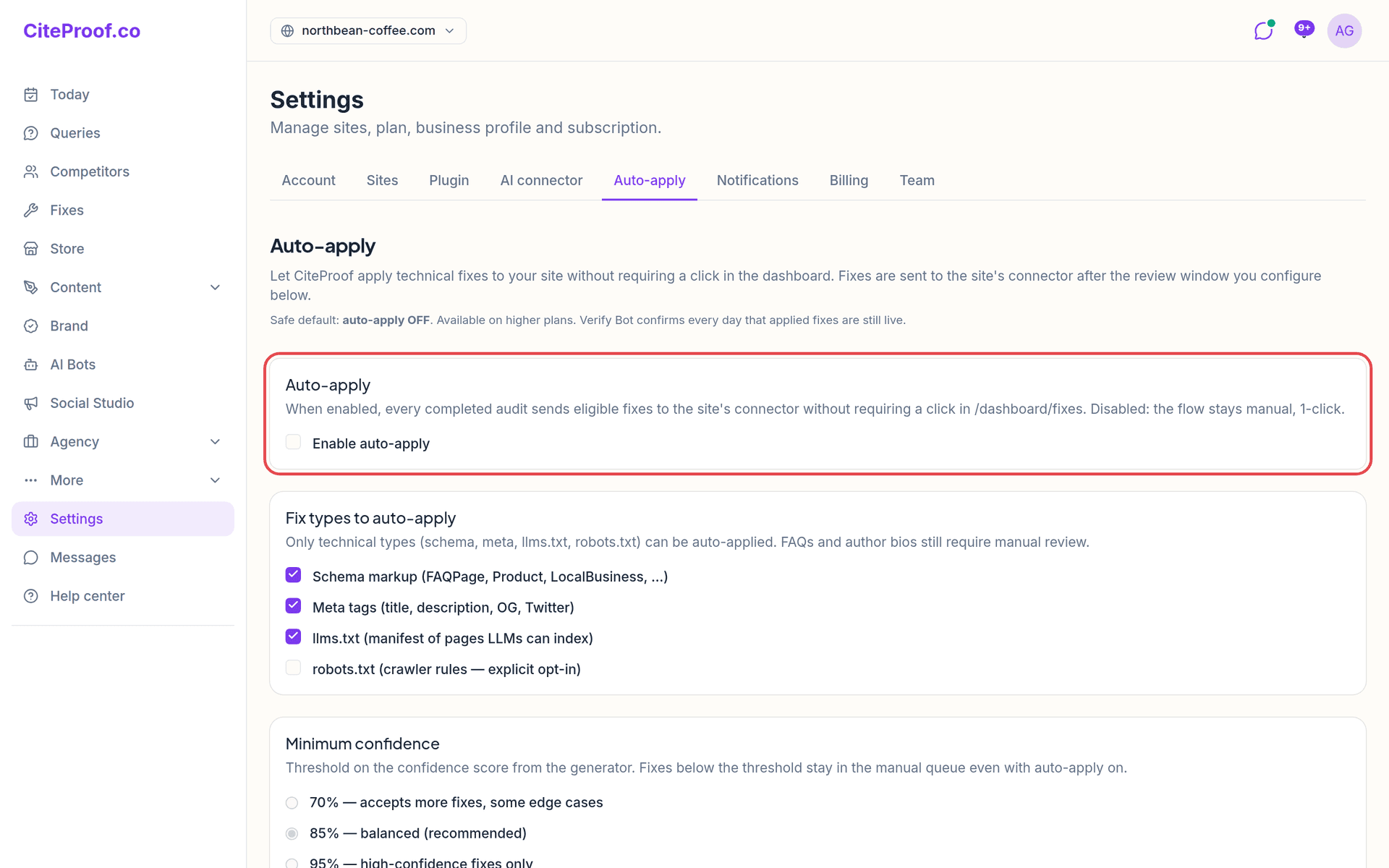
Safe default: off
Auto-apply starts off. Until you tick Enable auto-apply and press Save preferences, nothing changes: fixes stay manual, one click each, as described in Applying fixes.
It is available on the Cited, Dominant and Agency plans. On lower plans the page explains what it does and links to the plans.
Fix types to auto-apply
Only technical fix types can be auto-applied:
- Schema markup (FAQPage, Product, LocalBusiness and others);
- Meta tags (title, description, Open Graph, Twitter);
- llms.txt, the list of pages AI models can read;
- robots.txt, the crawler rules.
The first three are ticked by default. robots.txt is an explicit opt-in: a wrong rule can stop search engines from reading the site, so tick it only if you want it.
FAQs and author bios are never auto-applied: they contain text, so they always wait for your review. Structured data that is still incomplete (for example, missing business details) never enters the auto-apply queue either.
Minimum confidence
Each fix comes with a confidence score. Choose the threshold:
- 70%: accepts more fixes, including some edge cases;
- 85%: balanced, and recommended (the default);
- 95%: only high-confidence fixes.
Fixes below the threshold stay in the manual queue, even with auto-apply on.
Review window
The review window is the time between the creation of a fix and its push to the site: Immediate, 6 h, 12 h or 24 h (the default). During the window you can cancel the push from the Fixes page.
To stop everything that is already waiting, press Cancel queued fixes at the bottom of the page. The cancelled fixes stay in Fixes, where you can still apply them by hand.
Your preferences and your plan are checked again at the moment of the push: if you turn auto-apply off, or untick a type, what was already scheduled is not sent.
Pages to exclude
Type a path and press Add: /checkout/* excludes that page and everything below it, /contact excludes that page only. On excluded pages fixes add nothing: no schema, no meta tags, and the FAQ page is not created if its address is excluded. This applies to every fix, not only the auto-applied ones.
Exclusions work on WordPress sites with the plugin (version 2.66 and later) and on sites connected with the snippet or the Worker. They are not available on Shopify yet.
Notifications
With Tell me in the dashboard (bell) when a fix is auto-applied ticked (the default), every auto-applied fix appears in the bell, with a link to the fix so you can review it or roll it back.
With the WordPress plugin
If the plugin is in review-only mode, which is the case right after installation, the fixes sent by auto-apply wait in CiteProof → Pending fixes in WordPress until you approve them. To let them go live on their own, switch review-only mode off in the plugin settings.
Verify Bot
Auto-applied fixes go through the same check as the manual ones: the Verify Bot confirms every day that applied fixes are still live on the site.
Does auto-apply change the text of my pages?
No. It only sends technical fixes: schema, meta tags, llms.txt and, if you opt in, robots.txt. FAQs and author bios always wait for your review.
Can I stop a fix that is about to be applied?
Yes. During the review window you can cancel it from the Fixes page, or cancel everything in the queue with Cancel queued fixes in Settings → Auto-apply.
Which confidence level should I choose?
85% is the recommended balance. Choose 95% if you want only the safest fixes, or 70% if you prefer more fixes applied and are fine with some edge cases.
I enabled auto-apply but nothing changed on my WordPress site. Why?
Check the plugin: if review-only mode is on, the fixes wait in Pending fixes for your approval. Also check that the fix types are ticked and that the fixes reach the minimum confidence.