Every event in CiteProof shows up in the bell at the top of the dashboard. Settings → Notifications decides which of those events also reach you by email.
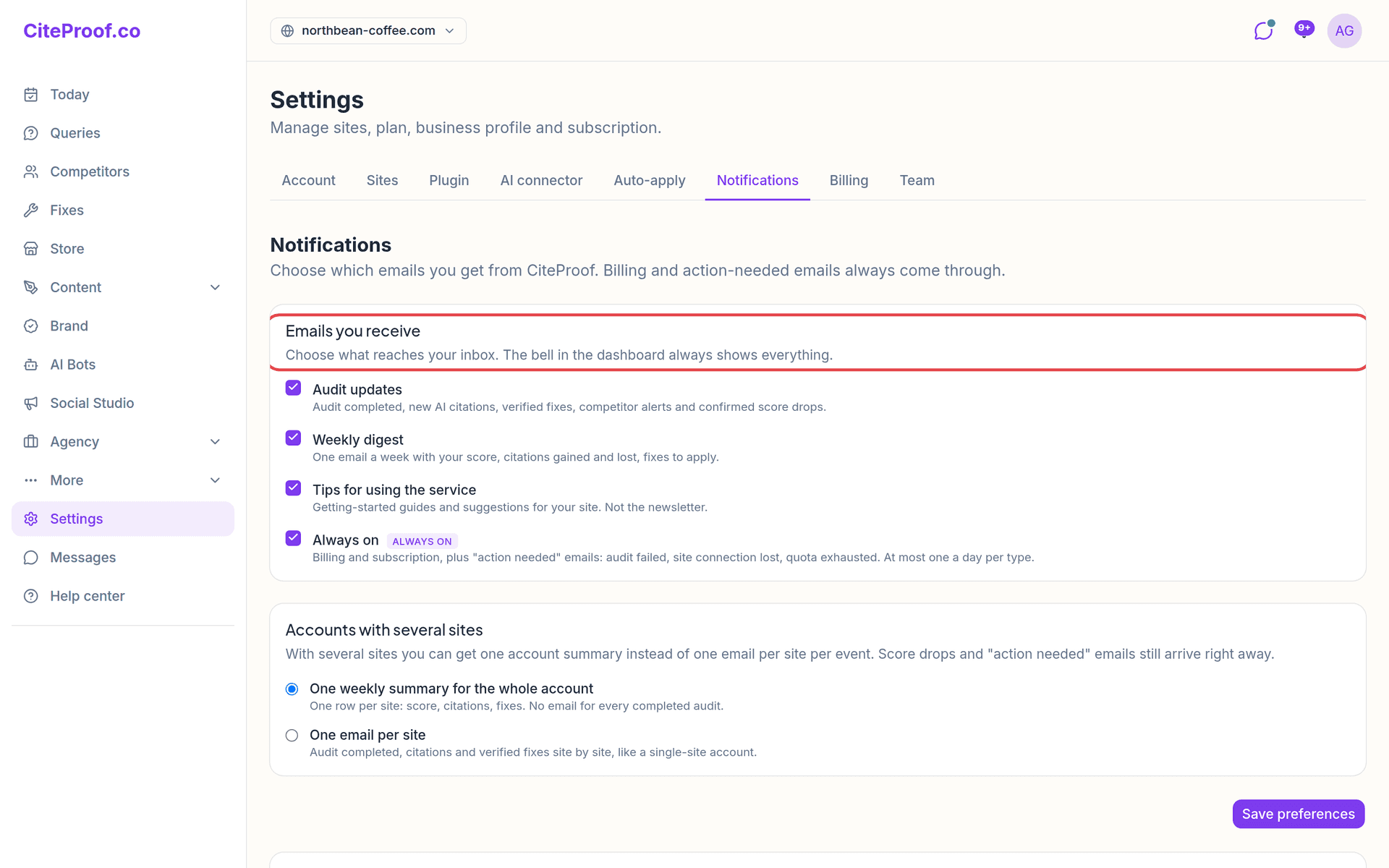
Emails you receive
Three kinds of email can be switched on or off:
- Audit updates: audit completed, new AI citations, verified fixes, competitor alerts and confirmed score drops.
- Weekly digest: one email a week with your score, citations gained and lost, and fixes to apply.
- Tips for using the service: getting-started guides and suggestions for your site. This is not the newsletter.
One row cannot be switched off: Always on. It covers billing and subscription emails, plus the "action needed" ones: audit failed, site connection lost, quota exhausted. You get at most one a day per type.
Whatever you untick here, the bell in the dashboard keeps showing everything.
Accounts with several sites
This section appears only when the account has more than one site. You choose between:
- One weekly summary for the whole account: one row per site with score, citations and fixes, and no email for every completed audit. This is the default with more than one site.
- One email per site: audit completed, citations and verified fixes site by site, as for a single-site account.
Score drops and "action needed" emails arrive right away in both cases.
Emails per site
Untick a site to stop its updates and digests; the site shows (emails off). Dashboard notifications for that site stay on.
Save
Changes to the sections above take effect only after you press Save preferences.
Newsletter and Slack
Lower on the page there are two separate settings:
- Newsletter: one or two emails a month with news and offers. It does not cover service emails. The switch saves as soon as you change it.
- Slack notifications: paste a Slack Incoming Webhook URL and press Save to get a summary in Slack whenever an audit completes. Send test checks the link. To stop, empty the field and press Save.
I unticked everything. Will I still get emails?
Yes, but only the Always on ones: billing and subscription, and action-needed emails such as a failed audit, a lost site connection or an exhausted quota. At most one a day per type.
I manage several sites and get too many emails. What should I do?
Under Accounts with several sites choose One weekly summary for the whole account and press Save preferences. You can also untick single sites under Emails per site.
If I turn off an email, do I lose the notification?
No. The bell in the dashboard always shows every event, whatever you choose for emails.