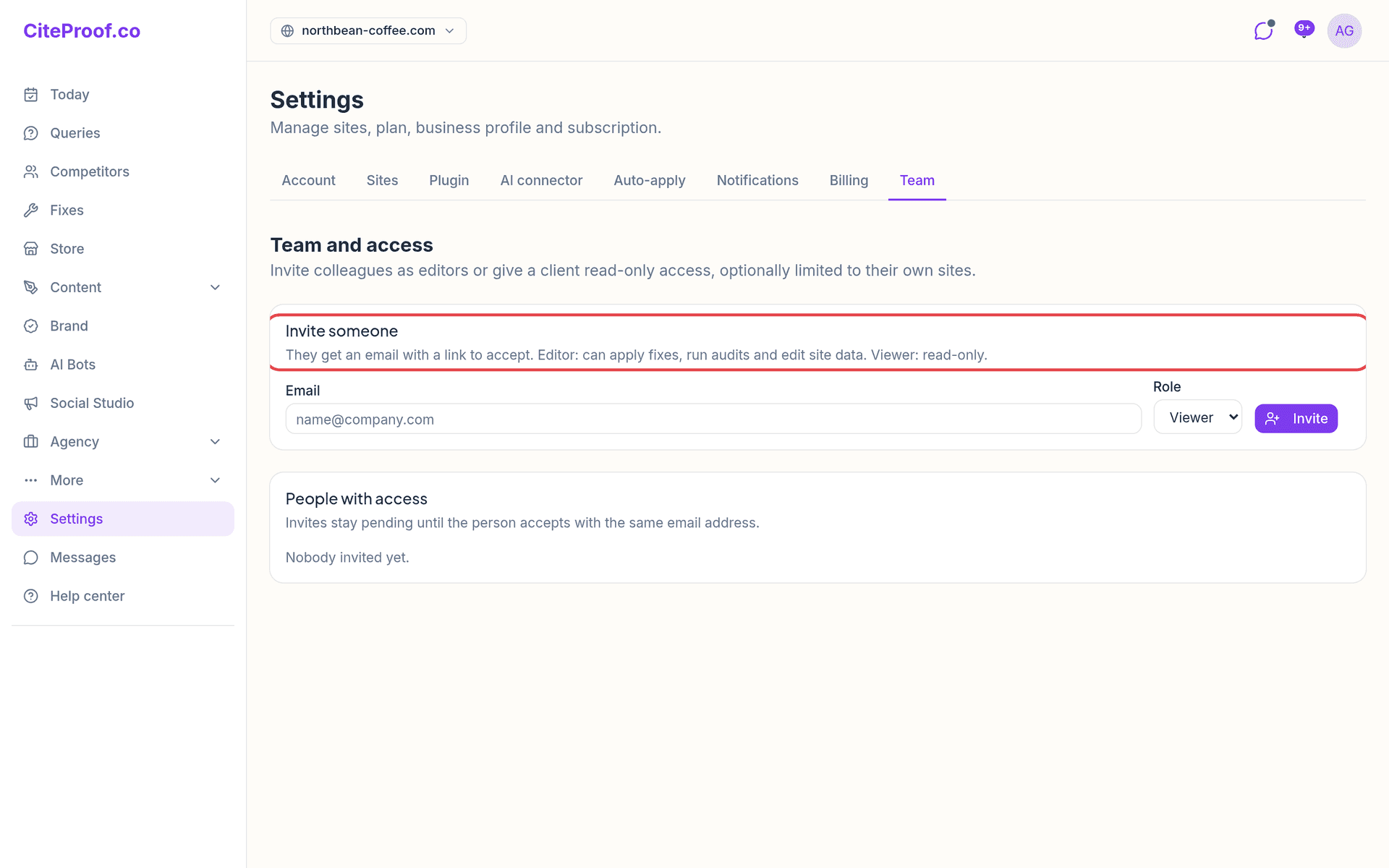
You don't need to share your password to work with someone. In Settings → Team you invite people to your account, each with their own login and a role.
The two roles
- Editor: can apply fixes, run audits and edit site data. Good for a colleague or a freelancer who works on the site.
- Viewer: read-only. Good for a client or a manager who wants to follow the results.
Only you, as the account owner, can invite people and revoke access.
Invite someone
- Under Invite someone, type the email in Email.
- Choose the Role. The default is Viewer.
- If you have the Agency plan and have created clients, a third field appears: Limit to one client. Leave Whole account to show every site, or pick a client: the viewer then sees only the sites assigned to that client. This limit applies to viewers only. See Agency and white-label for how to create clients.
- Press Invite.
The person receives an email with a link to accept. You can have up to 25 people, counting both pending invites and active members.
Pending invites
The invite appears under People with access with the status pending. It stays that way until the person opens the link and signs in with the same email address the invite was sent to. If they are signed in with another address, CiteProof tells them the invite is for another address and asks them to sign in with the right one.
Once accepted, the status becomes active and the person lands on the Today page of your account.
What the invited person sees
In their own Settings → Team they find Accounts you can access, with Enter to switch into your account and Back to my account to return. While they work on your account, a banner reminds them whose account it is and with which role, with an Exit button.
Remove access
Under People with access, press the bin icon (Revoke access) next to the person. The change is immediate, for both pending invites and active members. To give access again, send a new invite.
The invited person says the link doesn't work. Why?
Usually they are signed in with a different email address from the one you invited. They need to sign in with that exact address. If you revoked the invite, the link no longer works: send a new one.
Can a Viewer apply fixes or run an audit?
No. A Viewer has read-only access. To let someone apply fixes, run audits or edit site data, invite them as Editor.
Can I show a client only their own sites?
Yes, with the Agency plan: create the client in Agency → Clients, assign their sites, then invite them as Viewer and pick that client under Limit to one client.