Search Console and Google Analytics are two separate connections, made per site. Each takes a minute, and each one feeds different parts of CiteProof.
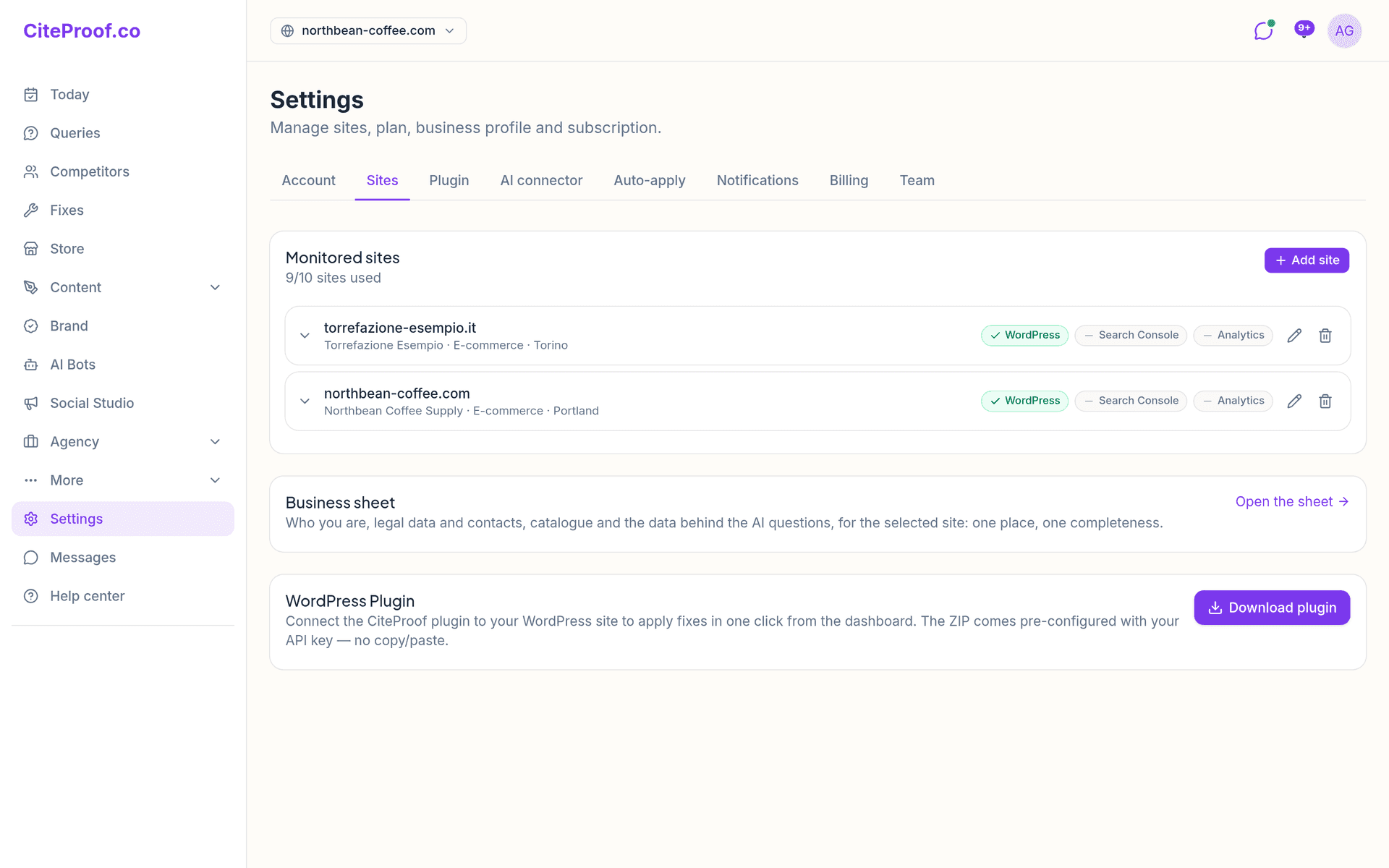
Where to find them
Go to Settings → Sites. Every site in the list shows three chips: the platform (for example WordPress), Search Console and Analytics. A tick means connected, a dash means not connected yet.
Click the site's row to open it. Below the platform settings you find the Google Search Console and Google Analytics sections, each with the domain, its status and a Connect button.
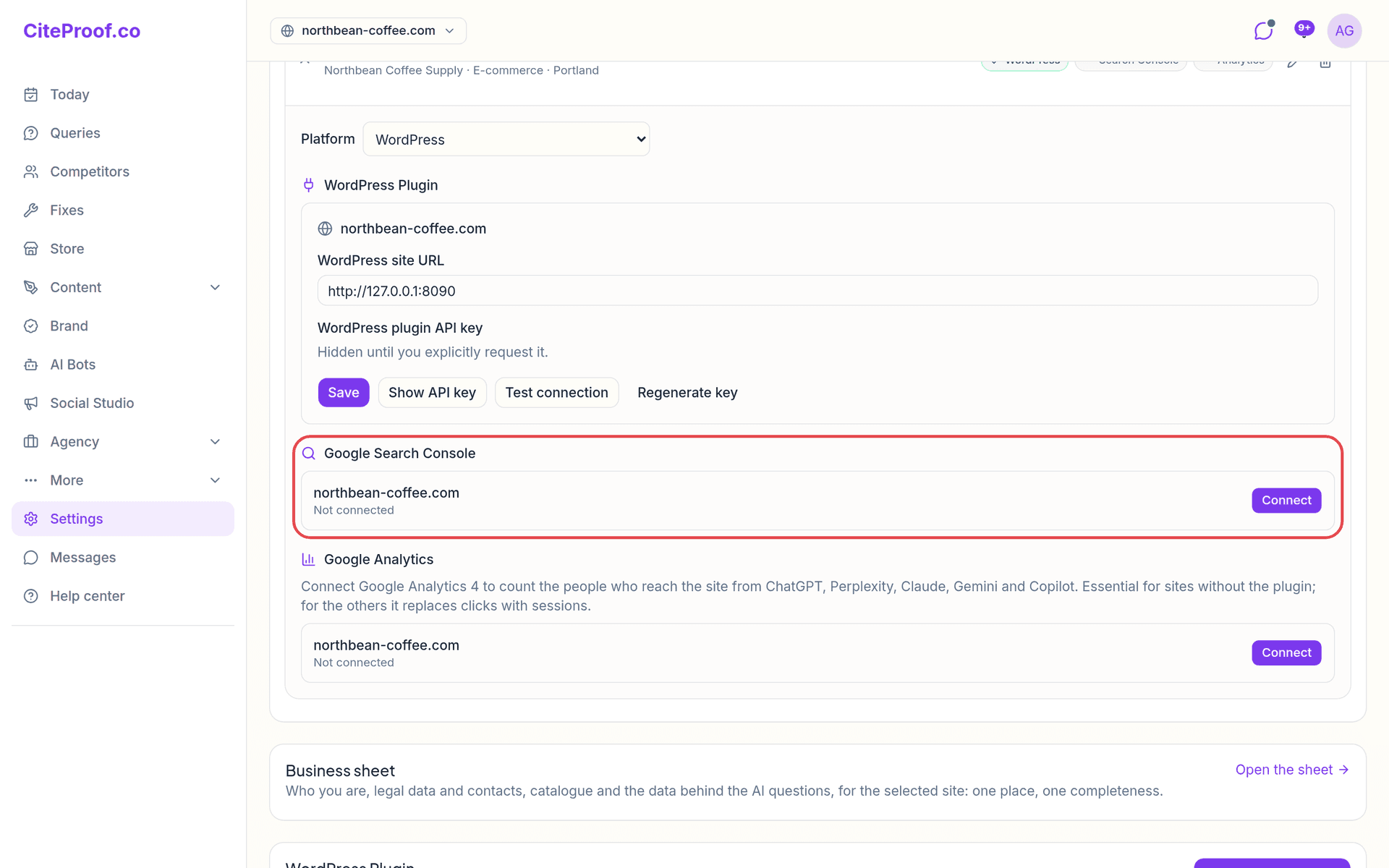
Connect Google Search Console
- Under Google Search Console, press Connect.
- Google asks you to choose an account. Pick the one that has access to the site in Search Console (owner or user of the property).
- Google shows what CiteProof asks for: read-only access to Search Console data. If Google shows a checkbox next to the permission, tick it, then press Continue.
- You land back in Settings → Sites with a message, and the status under the domain changes.
The status can be:
- Connected ✓: CiteProof found the property that matches your domain. Done.
- Connected, but no property matches this domain: the account you used can read Search Console, but has no property for this domain. CiteProof accepts a Domain property (
sc-domain:yoursite.com) or a URL-prefix property with the same host, with or withoutwww. Add and verify the site in Search Console with that account, or ask whoever owns the property to add your account as a user. Then press Reconnect.
Connect Google Analytics 4
- Under Google Analytics, press Connect.
- Sign in with the Google account that manages the site's Analytics and allow read-only access.
- Back in the dashboard, look at the status:
- Connected ✓: CiteProof found the GA4 property whose web stream points to your domain (or the only property the account has).
- Connected: pick the property below: the account has several properties and none clearly matches. Choose the right one from the list and press Use this one.
- If the account has no GA4 property it can read, the row says so: reconnect with the account that manages the site's Analytics.
Once the property is set, the first visits from the AI assistants arrive within a few minutes. After that the data is refreshed every day.
What each connection is used for
Search Console brings in real Google data for the last 28 days (Google publishes it about three days late):
- the queries you appear for, with clicks, impressions, CTR and position, in the Search Console card of each audit;
- the Google search trend on the Your report page: clicks and impressions against the previous 28 days, rising and falling queries;
- Queries suggested from Google on the Queries page: real searches you appear for but don't track in the AI engines yet;
- in the WordPress plugin, the titles to rewrite, the pages losing clicks and the question queries to add as FAQs. See Search Console in the plugin.
Google Analytics 4 counts the people who reach the site from ChatGPT, Perplexity, Claude, Gemini and Copilot. You see them on Today and on AI Bots. It is essential for sites without the plugin (Shopify, Wix or any other platform), where nothing else can measure those visits. On sites with the WordPress plugin it replaces the plugin's click count with GA4 sessions.
If Google says "Google hasn't verified this app"
While Google's review of our app is still pending, Google may show a warning screen before the consent page. The connection is still read-only: CiteProof can only read your Search Console and Analytics data, never change it. If you want to go ahead, press Advanced, then Go to citeproof.co. If you prefer, you can wait and connect later.
Read-only access and how to disconnect
CiteProof asks Google only for read-only permissions. The access token is stored encrypted and is used only to read your data.
There is no Disconnect button in the dashboard. To cut access, open your Google Account, go to the third-party apps and services you have connected, find CiteProof and remove its access. From then on CiteProof can no longer read the data. To connect again, press Reconnect in Settings → Sites.
I pressed Connect but the status says no property matches this domain. What now?
The Google account you used has no Search Console property for this domain. Verify the site in Search Console with that account, or ask the property owner to add you as a user, then press Reconnect.
Do I need Google Analytics if I already have the WordPress plugin?
It is not required: the plugin already counts visits from the AI assistants. With GA4 connected, CiteProof uses GA4 sessions instead. On sites without the plugin, GA4 is the only way to see those visits.
Can CiteProof change anything in my Google accounts?
No. Both connections use read-only permissions: CiteProof reads queries, clicks and visits and cannot change settings, properties or data.
Google shows a warning that the app is not verified. Is it safe to continue?
The warning appears while Google's verification of our app is pending. The access requested is read-only. You can continue with Advanced, then Go to citeproof.co, or wait and connect later.