CiteProof on Wix is an app you add to your site. It measures how AI assistants answer about your business and applies the fixes to your pages for you. There is nothing to paste into your site's code.
1. Add the app
In your site's Wix dashboard, open the Wix App Market, search for CiteProof and add it to the site. The install always starts from Wix: you don't need to create anything on citeproof.co first.
Wix then asks you to accept the permissions. They cover what the app actually does: reading the site's details, managing the SEO settings (title, description and structured data of your pages), publishing articles to your blog and, if you run a Wix Stores shop, reading and updating products and categories.
2. What happens on install
As soon as the app is installed, CiteProof prepares everything by itself:
- it creates a CiteProof account that belongs to your Wix site. It has no password and we send no email: you sign in from the Wix dashboard;
- it creates the site in CiteProof with your Wix site's address and name;
- if your site uses Wix Stores, it sets the site up as an online store.
Already have a CiteProof account with this site in it? Then the app may skip the new account and use yours: see Link your Wix site to your CiteProof account.
3. The CiteProof page in your Wix dashboard
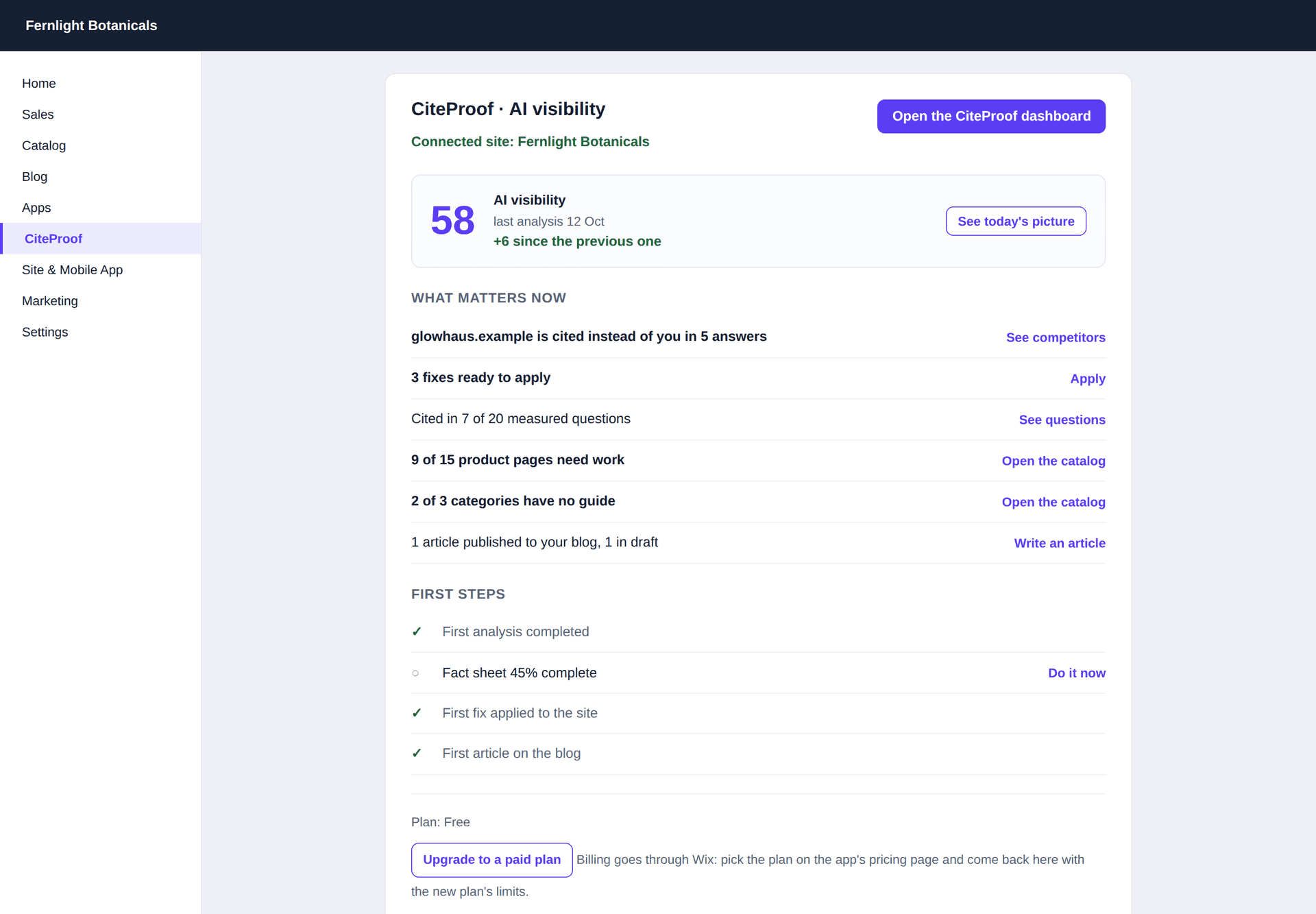
Open CiteProof from the sidebar of your Wix dashboard. At the top you see Connected site followed by your site's name. On the very first open you also see a note: "We created your CiteProof account: no password, you sign in from here."
Below that:
- AI visibility: your score, the date of the last analysis and how much it moved since the previous one. See today's picture opens the dashboard on today's overview. If there is no analysis yet you see No analysis yet and a Run the first analysis button, which opens the dashboard on the Today page to start it. While it runs, the box says Analysis running….
- What matters now: one line per topic, each with a button that opens the right page of the dashboard. Who is cited instead of you (See competitors), fixes ready to apply (Apply), how many measured questions cite you (See questions), on stores the product pages and categories to improve (Open the catalog), and your blog articles (Write an article).
- First steps: four checks that tick themselves as you complete them: first analysis completed, fact sheet filled in, first fix applied to the site, first article on the blog. Next to each open step, Do it now takes you there.
- At the bottom, the plan line (for example Plan: Free) and, on the Free plan, the Upgrade to a paid plan button. Plans have their own guide: Plans on Wix.
The page follows the language of your Wix dashboard (English or Italian).
4. Open the full dashboard
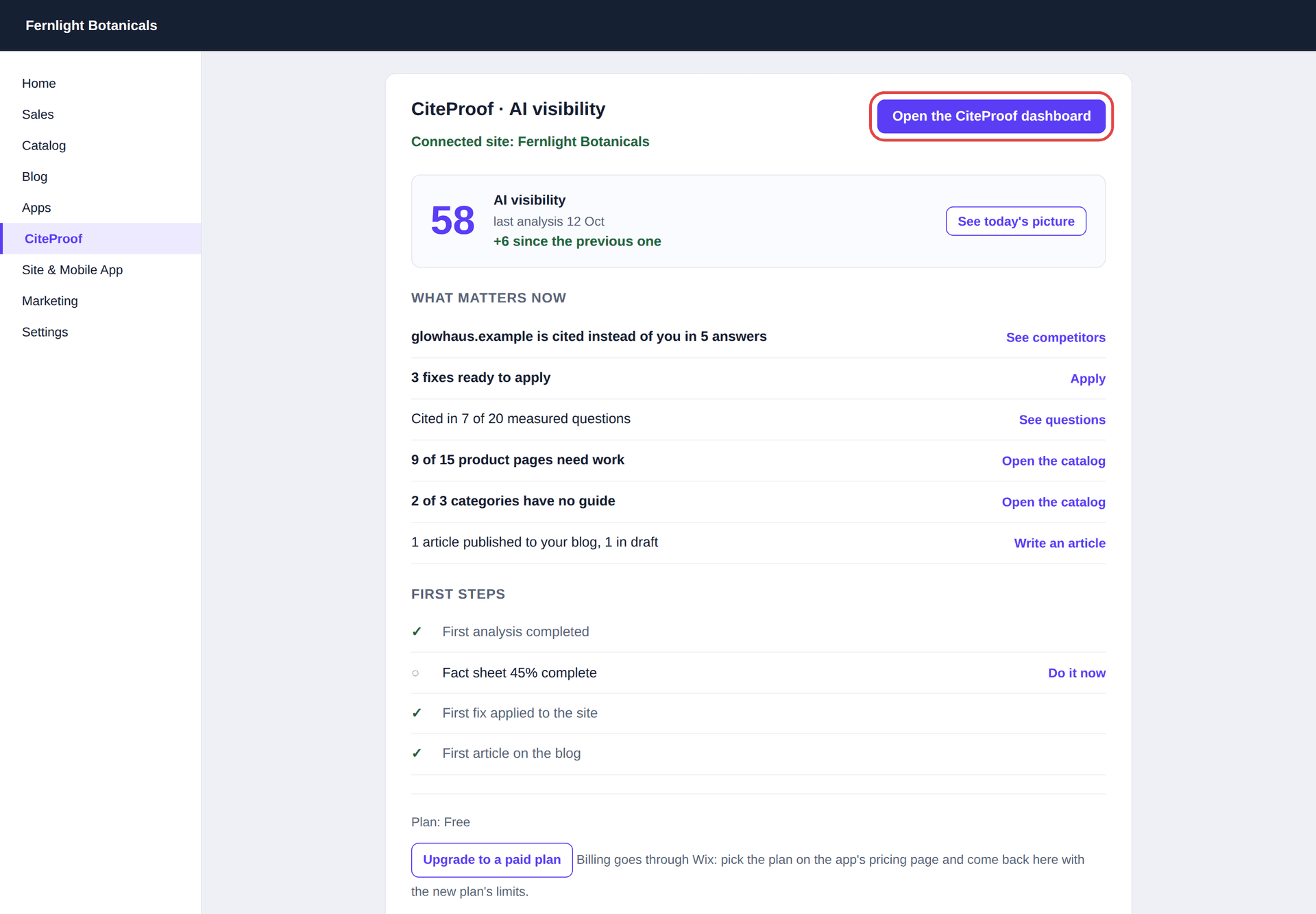
Open the CiteProof dashboard opens CiteProof in a new tab, already signed in, on the right site. That is where you read the full answers of the AI engines, apply fixes, write articles and work on the catalog.
Two details:
- Only the site owner sees the button. If you use the app as a site collaborator, the page shows the note "You are using the app as a site collaborator: the owner opens the dashboard."
- If your browser blocks the new tab, the page shows the note "The browser blocked the new tab: open it from here." with an Open CiteProof button right below the one you pressed.
What Wix does not allow
At the bottom of the page you read: "On Wix we cannot publish llms.txt or edit robots.txt; everything else we can." No Wix app can serve files at the root of the site or change robots.txt, so those two fixes stay out. Everything else (titles, descriptions, structured data, articles, products) goes through the app: see Fixes and articles on Wix.
Do I need to create a CiteProof account before installing?
No. The app creates the account and the site on install, with no password. If you already have an account, you can link the Wix site to it afterwards from the same page.
I am a collaborator on the site and I don't see the dashboard button. Why?
The button signs into the account behind the site, so only the site owner gets it. Collaborators see the page with the score, the rows and the first steps; the owner opens the dashboard.
What happens if I uninstall the app?
The install is marked as removed and a plan paid through Wix ends with it. The site and its data stay in CiteProof: if you install the app again on the same site, you find the same site, without duplicates.